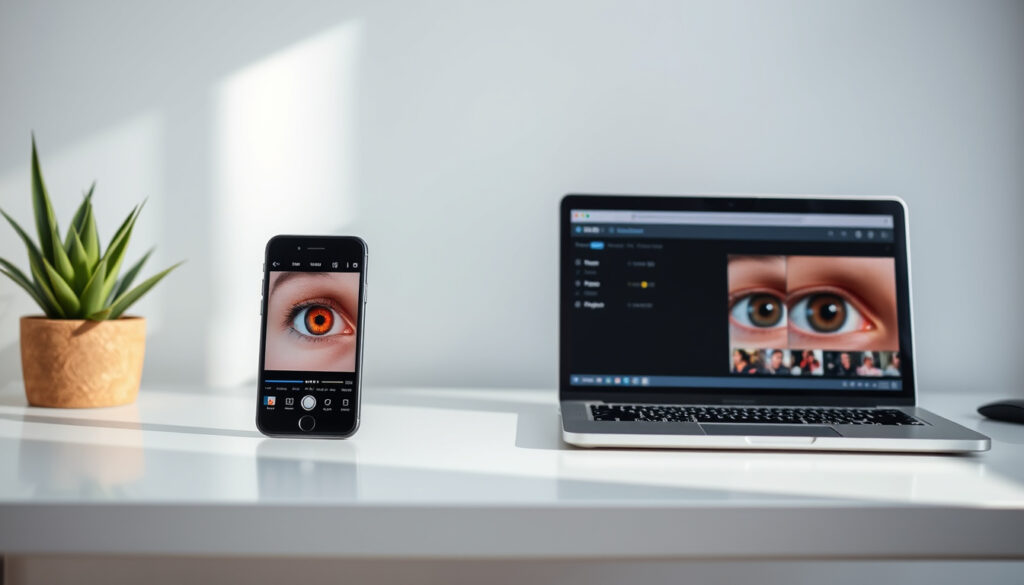
How to Remove Red Eye in Photos: iPhone, Android & Online
Few things ruin a perfectly good photo faster than a pair of glowing red eyes. Whether you caught someone mid-blink with the flash on or your pet’s eyes look like tiny lasers, the fix is easier than you think — and you probably already have the tools on your phone. Modern photo editors, both built-in and free online, have largely automated the red-eye problem, letting anyone clean up a photo in seconds.
Top platforms: Apple Photos, Google Photos, Picsart · Online tools available: Evoto, Cloudinary, Picsart · Mobile fixes supported: iPhone, Android, Samsung · Built-in removers: Mac Photos, iPhone Photos
Quick snapshot
- Apple has built-in red-eye tool in Photos app (Apple App Store)
- Multiple free online options exist for instant fixes (Evoto)
- Exact prevention tech in modern camera hardware varies by model
- Performance differences on low-quality or pet photos undocumented
- FixThePhoto published review of 12 red-eye removal apps in 2026 (FixThePhoto)
- Google Gemini 2.5 Flash Image enables AI-based fixes via text prompts (YouTube Tutorial)
- AI tools handle batch processing and multiple faces automatically (Evoto)
- Free tools dominate — no subscription required for basic removal (FixThePhoto)
The following table summarizes the core facts about red-eye causes, fixes, and tool availability.
| Label | Value |
|---|---|
| Cause | Flashlight reflection in eyes |
| Common fix | Auto red-eye correction |
| Platforms | iOS, macOS, web, Android |
| Free tools available | Yes, no subscription needed |
| Batch processing | Supported by AI tools like Evoto and Pixelbin |
| File size limits | Pixelbin caps at 10MB (webp/jpg/jpeg/png) |
How do I get rid of red-eye in photos?
Red eye occurs when a camera flash reflects light from the retina in low-light conditions. The effect is most common in point-and-shoot cameras because the flash sits close to the lens, but it can affect any photo taken with the flash enabled in dim environments.
Apple’s own Red Eye Corrector app (available on the Apple App Store) describes the fix in three simple steps: select the photo, correct the red pupils, and save or share. Modern photo editors automate this entire process with one click.
What causes red-eye?
When a flash fires in a dark room, your pupils are wide open to let in as much light as possible. The flash bounces off the back of your eye — specifically the retina, which is rich with blood vessels — and that reddish color reflects back through the lens. It’s the same reason eyes glow in animal photos, where the reflective layer (tapetum lucidum) makes the effect even more dramatic.
Built-in editor steps
Most photo editing apps, including Apple Photos and Google Photos, now include automatic red-eye detection. The software identifies the characteristic dark-red pupils and applies a correction that restores the natural iris color. For iPhone users, the Edit tool in Photos includes a dedicated Red Eye option that works with a single tap.
The implication: built-in tools have become so capable that most people never need a separate app. If the auto-detection doesn’t catch every instance, manual adjustment options let you click and correct specific eyes.
How do I delete red-eye in photos on iPhone?
Apple’s Photos app handles red-eye correction directly within its editing interface. You don’t need to download anything additional — the feature has been built into iOS for several versions.
Steps in Photos app
Open your photo in the Photos app, tap Edit in the upper right corner, then look for the red eye icon (an eye with a small circle inside) in the toolbar below your image. Tap it to activate auto-detection, which highlights the affected pupils. Confirm the fix and save your changes.
If auto-detection misses something, you can manually tap each eye to correct it. The Red Eye Corrector app (Apple App Store) offers three-step processing — select, correct, save/share — and provides before/after previews so you can verify the results before committing to changes.
Third-party apps
YouCam Makeup, available on iOS and Android, offers free red-eye removal alongside skin retouching and filters according to FixThePhoto. Red Eye Corrector for iOS automatically processes photos in three steps and is verified by two independent sources on the App Store.
Red Eye Corrector’s iOS app (App ID 1496373691) handles the entire correction workflow in three steps and provides before/after previews. For users who want a dedicated tool rather than the built-in Photos editor, this is the most straightforward option for iPhone.
How do I remove red-eye from photos on Mac?
Apple Photos on macOS works identically to the iPhone version, with a dedicated Red Eye tool in its editing interface. The process requires just a few clicks and takes advantage of automatic detection.
Apple Photos steps
Double-click the photo you want to edit to open it in full-screen view, then click Edit in the toolbar. Select the Red Eye tool (the eye icon) and click each affected pupil. The app automatically applies the correction, and you can adjust the intensity if needed before clicking Done to save your changes.
Auto detection
The automatic detection in Apple Photos for Mac is particularly effective on well-lit photos where the red pupils are clearly visible. According to Dreamina by CapCut, AI-powered tools like Image 4.5 by Seedream 4.5 can handle more complex cases where the red-eye effect is subtle or partially obscured by shadow.
What this means: for most Mac users, the built-in Apple Photos tool is sufficient. Only in cases of very dark or grainy photos might you need to explore third-party AI tools that can reconstruct the iris detail more comprehensively.
Can I remove a red-eye in Google Photos?
Google Photos includes basic red-eye correction within its editing tools, though the functionality is less prominent than in Apple’s ecosystem. The Google Help documentation covers the process for fixing red eyes in photos using their editor.
Google Help fixes
To access the red-eye tool in Google Photos, open your photo, tap the Edit button, and look for adjustments. The exact location varies slightly between Android and iOS versions, but the tool is typically found under the Light or Color adjustments section.
Editor tools
If Google Photos’ built-in tools don’t produce the results you’re looking for, you can use the web-based editor at Cloudinary for one-click online removal. Cloudinary automatically detects and corrects red eyes, with batch processing available through URLs or the dashboard. This is particularly useful if you’re editing multiple photos from a cloud-stored album.
The pattern: Google Photos handles basic fixes, but dedicated online tools like Cloudinary offer more powerful detection and batch processing that Google Photos cannot match.
How do I remove red-eye in photos online?
Free online tools have made red-eye removal accessible without installing any software. These browser-based editors work on any device with an internet connection, including iPhone, Android, and desktop computers.
Free tools like Evoto
Evoto AI Red Eye Remover fixes red pupils in one click, reconstructing natural iris color, texture, and shine. The process involves importing your image, locating the red eye feature, removing the effect, and saving the corrected photo. The tool’s official documentation describes it as handling the entire workflow automatically — select, correct, done.
AI auto-detection tools like Evoto excel when processing multiple eyes or faces in a single photo. If you’re editing a group shot where several people have red eye, an AI tool can correct them all at once rather than requiring manual selection for each person.
Picsart and Cloudinary
Picsart’s Red Eye Remover follows a four-step workflow: upload your image, select the red eye tool, adjust manually if needed, apply the correction, and download the result. According to Picsart’s official tool page, the interface includes manual adjustment options for precision control.
Cloudinary offers 100% online one-click red eye removal for portraits and selfies, with support for batch processing through its dashboard or URL-based commands. The Pixelbin tool works browser-based on any device and supports images up to 10MB in webp/jpg/jpeg/png formats.
The catch: while these online tools are convenient, they require an internet connection. For offline editing on mobile, you’ll need to use a dedicated app instead.
AI-powered alternatives
Dreamina by CapCut uses AI image features with text prompts like “remove red eyes,” powered by Image 4.5 by Seedream 4.5. According to Dreamina’s documentation, the tool offers Retouch and Inpaint features that preserve eye details while removing the red effect.
Google Gemini 2.5 Flash Image reportedly removes red eye via AI with text prompts on iPhone, Android, or desktop, as demonstrated in tutorials on YouTube. While this approach is more flexible, it requires crafting the right prompt to achieve consistent results.
One-click tools like Fotor and Cloudinary are simpler for beginners, while prompt-based AI tools like Dreamina and Google Gemini offer more customization. For most casual users, the one-click approach delivers good results with less effort — but photographers wanting precise control may prefer the manual adjustment options in Picsart.
Tips for best results
For optimal red-eye correction, Pixelbin’s guidance recommends using clear photos with visible eyes, avoiding blur, and ensuring high resolution. Low-quality or heavily compressed images can be harder for auto-detection to process accurately.
“Red eye removal is effortless. Simply click once to transform your images instantly.”
“Say goodbye to red eyes in your photos — in just one tap.”
Related reading: Happy Mother’s Day images and GIFs · Test internet speed
After correcting red eye in group shots or portraits, many photographers also address overexposure using simple fixing overexposed photos in Lightroom or on iPhone.
Frequently asked questions
Can you fix a red-eye in photos?
Yes. Both built-in photo editors (Apple Photos, Google Photos) and free online tools (Evoto, Picsart, Cloudinary) can remove red eye from photos with one click or automatic detection.
Does Apple have a red-eye remover?
Apple includes a Red Eye tool in Photos on iPhone, iPad, and Mac. The built-in editor detects affected pupils automatically and allows manual correction if needed.
Can I remove a red-eye on my phone?
Yes. iPhone users can use the Photos app’s Edit function with the red eye icon. Android users can access similar tools in Google Photos or download dedicated apps like Red Eye Corrector from the Google Play Store.
Why is red-eye in photos not a thing anymore?
Modern cameras and smartphones use pre-flash systems that constrict pupils before the main flash fires, reducing the red-eye effect significantly. When it does occur, built-in AI tools in photo editors correct it automatically.
What are free apps to remove red eye in photos?
Free options include Red Eye Corrector (iOS and Android), YouCam Makeup (iOS and Android), Snapseed (mobile), and online tools like Evoto, Picsart, and Cloudinary — none require a subscription for basic red-eye removal.
How do I remove red eye in photos on Android or Samsung?
Google Photos on Android includes a red-eye fix in its editing tools. For more advanced options, Red Eye Corrector for Android (available on Google Play) uses AI for one-tap automatic removal from gallery photos.
More related posts
 Kirby Howell-Baptiste: Nationality, Career, and Personal Life
 World of Books Ireland: Legitimate, Worth It? Full 2025 Guide
 How to Start a Morning Routine: Simple Expert Steps
 Compare Mobile Phone Plans Ireland 2025
 O’Sullivans Pharmacy Grange: Hours, Address, Contact Cork
 Deck the Halls Lyrics – Full Text with History and Meaning
 Play Centre Near Me: Best Indoor & Outdoor Kids Activities
 What Age is Michael Murphy? Gaelic Footballer & Journalist