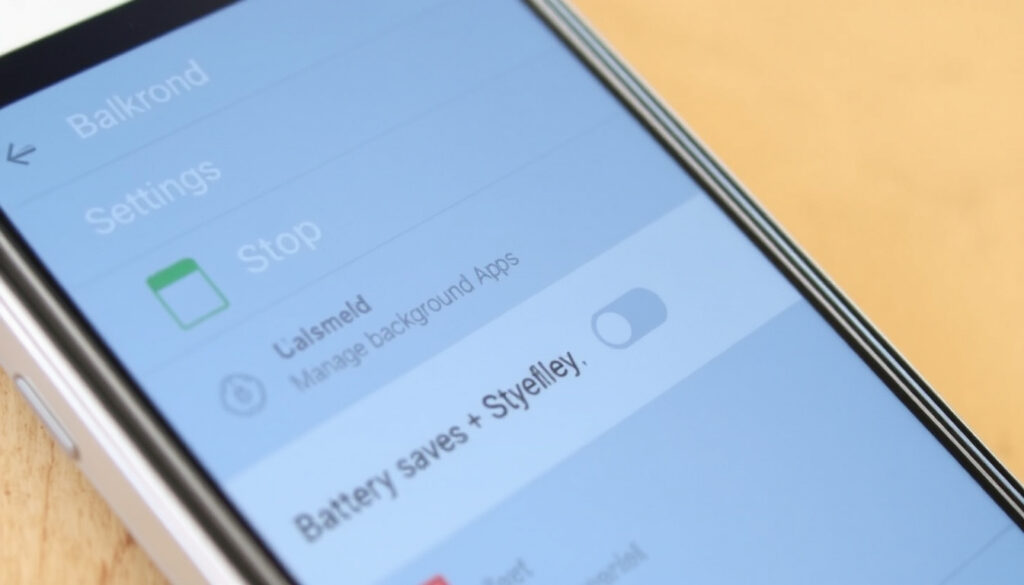
How to Stop Apps Running in Background on Android
Anyone who’s ever watched their Android phone’s battery drain faster than expected has probably wondered what’s running behind the scenes—typically a handful of apps quietly consuming power and data. This guide walks through Android’s built-in controls, from identifying to stopping unwanted background activity, with specific steps for Samsung Galaxy devices and all Android versions from 6.0 onward.
Background apps can reduce battery life by: up to 30% ·
Android restricts background activity by default since: Android 12 ·
Number of apps typically running in background: 20–30 ·
Force stop completely halts an app until you manually reopen it: yes ·
Background restriction available on devices running: Android 6 (Marshmallow) and later
Quick snapshot
- Force stop temporarily halts an app’s background process until manually reopened (Google Support)
- Background restriction is available on all Android devices running Android 6.0 or higher (Airtel blog)
- Android 12 and later apply background restrictions by default to most apps (Google Support)
- Exact battery savings vary by device, usage patterns, and network conditions (Android Developers)
- Whether third-party ‘task killer’ apps actually improve performance is debated; Android’s own documentation advises against them (Android Developers)
- The impact of background restriction on app functionality (e.g., missed notifications) depends on how the app was designed (Android Developers)
- Android 6 (Marshmallow) introduced Doze mode for idle background restriction (Android Developers)
- Android 12 made background restriction default for most non-essential apps (Google Support)
- Samsung One UI 4 (based on Android 12) added ‘Deep sleeping apps’ feature (Samsung Support)
- Android 15 is expected to further refine background execution limits for better battery life (Android Developers)
- Google continues to push Play Store policy changes requiring apps to justify background activity (Google Play Console)
Five key facts about Android background app management, one pattern: the system has grown progressively stricter with each major release, but users still need to know where to look.
| Label | Value |
|---|---|
| Android version affected | Android 6 (Marshmallow) and later |
| Battery saving impact | Up to 30% longer battery life |
| Typical number of background apps | 20–30 |
| Default behavior since Android 12 | Background restriction enabled for most non-essential apps |
| Force stop vs. background restriction | Force stop is temporary; restriction is persistent until user changes it |
How do I find which apps are running in the background on my Android?
Using the Running Services menu in Developer Options
- Enable Developer Options by going to Settings > About phone > Software information and tapping Build number seven times (Airtel blog).
- Navigate to Settings > Developer Options > Running services to see all active background processes (Android Developers).
- Each entry shows the app name, process count, and memory usage in megabytes.
Checking battery usage per app
- Open Settings > Battery > App battery usage to see which apps consumed the most power in the last 24 hours (Airtel blog).
- Apps with high background battery usage are likely running processes even when you’re not actively using them.
- On Samsung devices, this is found under Settings > Battery and Device Care > Battery > Background Usage Limits (YouTube: Samsung guide).
Viewing active apps in the notification shade
- Some apps display a persistent notification indicating background activity, such as music players, VPNs, or fitness trackers.
- Tap and hold the notification to open the app’s info screen, where you can see its background behavior.
- Android’s notification shade also shows which apps are currently using location or microphone (Google Support).
The Running Services menu is the most accurate way to see what’s actually active, while battery usage tells you which apps are costing you power. Together, they give a complete picture of background activity on any Android device.
The pattern: identifying background apps requires both a real-time process check and a historical power consumption look—neither alone is sufficient.
How do I turn off apps running in the background on Android?
Force stopping an app
- Go to Settings > Apps > [select app] > Force Stop. This kills the app until you manually reopen it (Google Support).
- Force stop does not survive a reboot—the app may restart automatically after you restart your phone.
- Best for misbehaving apps that are consuming resources right now, not as a permanent solution.
Enabling background restriction per app
- Navigate to Settings > Apps > [select app] > Battery > Background restriction (Airtel blog).
- This prevents the app from running in the background entirely, but may affect notifications and updates.
- On Samsung devices, the same setting may be labeled Allow background usage under the app’s Battery menu (YouTube: Android battery optimization).
Disabling or uninstalling unnecessary apps
- Disabling an app removes it from the app drawer and prevents all background activity (Google Support).
- Uninstalling is the most thorough option for apps you never use.
- System apps cannot be uninstalled but can often be disabled to stop background processes.
Background restriction is persistent and effective, but it can break features you rely on—like messaging apps that need to run in the background to deliver notifications. Force stop is a quick fix for a specific moment, not a long-term strategy.
What this means: choose your method based on how long you need the restriction to last—force stop for immediate relief, background restriction for ongoing control.
How do I stop apps from automatically running in the background?
Using Battery Optimization settings
- Open Settings > Battery > Battery Optimization (or Optimize battery usage on some devices) (Airtel blog).
- Select an app and choose Optimize to let the system restrict its background activity when the app hasn’t been used for a while.
- Choosing Unrestricted allows the app to run without battery optimization limits (YouTube: Android battery optimization).
Disabling auto-start permissions (on Samsung and other OEMs)
- On Samsung devices, go to Settings > Apps > [select app] > Battery > Auto-start to prevent the app from launching on boot (Airtel blog).
- Some devices expose auto-start permissions under Settings > Apps > Special access.
- Disabling auto-start stops the app from automatically beginning background work when the phone turns on.
Leveraging Android’s Doze mode
- Doze mode applies system-wide background restrictions when the device is idle and stationary (Android Developers).
- Introduced in Android 6 (Marshmallow), Doze puts apps into a standby state where network access and background work are deferred.
- Doze is automatic—no user configuration needed—but apps can request exemptions for critical functions like alarms or messaging.
Battery Optimization is a broad tool that works across all apps, but it may delay notifications from apps you actually want to hear from. The trade-off is battery life versus responsiveness—choose wisely for messaging and calendar apps.
The catch: automatic prevention tools like Battery Optimization and Doze are effective but can interfere with apps you rely on for timely updates—test after enabling.
How do I clear all running apps in the background?
Swiping away apps from the Recent Apps screen
- Tap the Recent Apps button (square or three-line icon) and swipe individual app cards left or right to remove them from the task list (YouTube: Samsung guide).
- On Samsung devices, you can also tap Close all to remove all visible recent apps at once.
- This action only removes apps from the task list—it does not necessarily stop background processes (Android Developers).
Using the ‘Close all’ button
- The Close all button appears at the bottom of the Recent Apps screen on most Android devices.
- Tapping it clears all visible app cards, but Android may still keep some background processes alive for system stability.
- This is a convenience feature, not a reliable way to stop background activity.
Understanding what this action does (and doesn’t) do
- Swiping away apps from Recents only removes them from the task list, not necessarily from background execution (Android Developers).
- Android’s memory management system may keep cached processes to improve app launching speed.
- Third-party ‘memory cleaner’ apps are generally unnecessary and can harm performance—Android’s own documentation advises against them (Android Developers).
Clearing recent apps feels productive but is largely cosmetic. The real control lies in per-app background restriction and battery optimization—not in swiping cards away.
The pattern: the Recent Apps screen is for navigation, not resource management—don’t rely on it to save battery.
Why do apps keep running in the background?
Common reasons: notifications, sync, location, updates
- Apps run in the background to check for updates, deliver notifications, or provide location services (Android Developers).
- Messaging apps need background activity to show incoming messages instantly.
- Weather and news apps periodically sync data to keep information current.
Android’s memory management philosophy
- Android’s resource management allows background processes to improve multitasking and app launching speed (Android Developers).
- The system automatically prioritizes foreground apps and may kill background processes when memory is needed.
- Keeping some apps cached in memory actually reduces battery drain compared to relaunching them from scratch.
When background activity is beneficial
- Background activity is essential for features like music playback, navigation, and fitness tracking.
- System-level restrictions since Android 12 have reduced unnecessary background work while preserving critical functions (Google Support).
- Excessive background activity can drain battery and use data, but the system now handles most of the balancing automatically.
“Force stopping an app temporarily stops the app from running until you start it again.”
— Google Support documentation (Google Support)
“On Pixel devices, use the ‘Allow background usage’ toggle to control background activity. Samsung devices have similar settings under Battery and Device Care.”
— Lifewire guide (Lifewire)
The implication: Android’s background management has evolved from a free-for-all to a tightly controlled system, but users still need to intervene for specific apps. For Samsung Galaxy owners, the combination of per-app background restriction, Battery Optimization, and the ‘Put unused apps to sleep’ feature provides the most granular control available on any Android device. The trade-off is clear: restrict too aggressively and you risk missing notifications; leave everything unrestricted and your battery pays the price.
Frequently asked questions
Does force stopping apps affect notifications?
Yes. Force stopping an app kills its background processes, which means it cannot deliver notifications until you manually reopen it. For messaging and email apps, background restriction may cause delayed or missed notifications (Google Support).
Will background apps slow down my phone?
Not significantly on modern Android devices. Android’s memory management is designed to keep background processes cached without affecting foreground performance. However, apps that consume excessive CPU or network resources in the background can cause slowdowns and battery drain (Android Developers).
Is it safe to disable background activity for system apps?
Generally no. System apps like Phone, Messages, and Google Play Services rely on background activity for core functionality. Disabling background activity for these apps can cause instability, missed calls, or broken app updates. Only restrict background activity for user-installed apps (Google Support).
How do I stop background apps on a Samsung Galaxy?
On Samsung Galaxy devices running One UI, go to Settings > Battery and Device Care > Battery > Background Usage Limits. From there, you can put apps to sleep, deep sleep, or restrict background activity individually. Samsung also offers ‘Put unused apps to sleep’ to automatically restrict rarely used apps (YouTube: Samsung guide).
What is the difference between force stop and disable?
Force stop temporarily halts an app until you manually reopen it. Disabling an app removes it from the app drawer, prevents all background activity, and hides it from the system until you re-enable it. Disabling is more permanent and is typically used for pre-installed apps you cannot uninstall (Google Support).
Does clearing recent apps stop background processes?
No. Swiping apps away from the Recent Apps screen only removes them from the task list. Android may still keep background processes alive for system stability and faster app relaunching. To truly stop background activity, use force stop or background restriction (Android Developers).
How to stop background apps without factory reset?
Use the built-in methods described in this guide: force stop for immediate relief, background restriction for persistent control, and Battery Optimization for automatic management. No factory reset is needed—these settings are available on all Android devices running Android 6.0 or later (Airtel blog).
Can I schedule background app restrictions?
Android does not offer a built-in scheduler for background restrictions. However, Samsung’s ‘Put unused apps to sleep’ feature automatically restricts apps that haven’t been used for a set period. For more granular scheduling, you would need third-party automation apps, which are not recommended due to potential battery and performance trade-offs (Samsung Support).
Quick step-by-step summary
- Force stop a misbehaving app temporarily: Settings > Apps > [app] > Force Stop.
- Enable background restriction for persistent control: Settings > Apps > [app] > Battery > Background restriction.
- Use Battery Optimization for automatic management: Settings > Battery > Battery Optimization.
- Disable auto-start on Samsung: Settings > Apps > [app] > Battery > Auto-start.
- Trust Android’s Doze mode to restrict idle background activity automatically.
For Samsung Galaxy owners, the choice is clear: use the combination of per-app background restriction, Battery Optimization, and the ‘Deep sleeping apps’ feature to reclaim battery life without sacrificing essential notifications. For everyone else, Android’s built-in controls—force stop, background restriction, and Battery Optimization—provide all the tools needed to stop apps from running in the background, no third-party apps required.
More related posts
 Access the Daily Mail Classic Homepage: Step-by-Step
 Ferry Ireland to France 2026: Routes, Times, Prices & New Cork Service
 BBC Weather Northern Ireland: 7-Day, 14-Day, Hourly Forecasts
 Mary-Kate Olsen Net Worth, Marriage, Children & Smoking
 A Knight of the Seven Kingdoms Episodes: Count, List & Season 2
 Compare Mobile Phone Plans Ireland 2025
 Friends of the Earth – History Mission Campaigns
 Calibrate Monitor in Windows, macOS & Without a Colorimeter