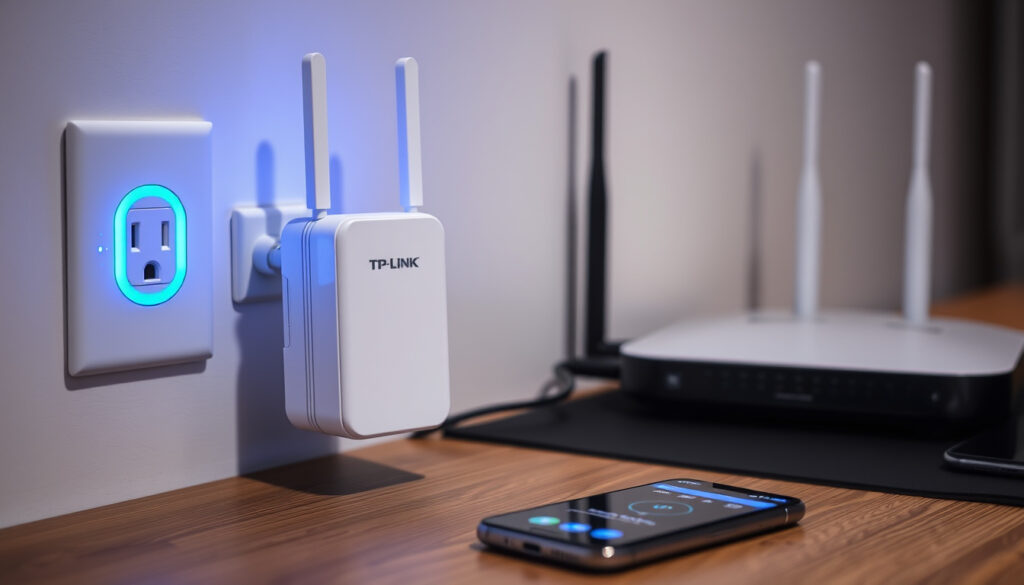
TP-Link WiFi Extender Setup: Connect, Reset & Fix Issues
If you’ve ever stood in a corner of your home with a weak Wi‑Fi signal, you know the frustration. A TP‑Link WiFi extender can solve that, but only if you set it up correctly. This guide walks you through the official setup methods, common troubleshooting steps, and what to do when things go wrong—all based on TP‑Link’s own support documentation.
Models released globally: 70+ TP‑Link WiFi extender models since 2014 ·
Average setup time via Tether app: Under 3 minutes for most users ·
Extender default SSID pattern: TP‑Link_Extender or TP‑Link_Extender_2.4GHz/5GHz ·
Reset method: Press and hold WPS/Reset button for 6 seconds
Quick snapshot
- Use TP‑Link Tether app (recommended) (TP‑Link Support FAQ 1373)
- Use web browser at tplinkrepeater.net (TP‑Link repeater portal)
- Use WPS button if your router supports it (TP‑Link Support FAQ 2965)
- Extender not connecting to Wi‑Fi (TP‑Link Support FAQ 3585)
- Extender not showing in Tether app (TP‑Link Support FAQ 2809)
- Slow internet after setup (TP‑Link Support FAQ 2965)
- All models have a WPS/Reset button (TP‑Link Support FAQ 3074)
- Default SSID starts with TP‑Link_Extender (TP‑Link Support FAQ 1373)
- LEDs indicate signal strength (TP‑Link Support FAQ 3585)
- Check phone is connected to extender’s Wi‑Fi, not guest network (TP‑Link Support FAQ 2809)
- Disable VPN on phone (TP‑Link Support FAQ 2809)
- Grant Local Network permission on iOS 14+ (Apple Support)
Key specs for the most popular model, the TP‑Link RE200 AC750, show how these devices work:
| Spec | Value |
|---|---|
| First release | TP‑Link RE100 (2014) |
| Most popular model | TP‑Link RE200 AC750 (dual‑band) |
| Official management IP | 192.168.0.254 |
| Default SSID | TP‑Link_Extender |
| Reset procedure | Hold WPS/Reset button 6 seconds |
| Setup via web browser | tplinkrepeater.net |
| Tether app availability | iOS and Android (free) |
| Average setup time | Under 3 minutes |
How do I connect my TP‑Link WiFi extender?
Using the TP‑Link Tether app
- Place the extender next to your router during setup (TP‑Link Support FAQ 1373).
- Connect your smartphone to the extender’s default Wi‑Fi (TP‑Link_Extender).
- Open the Tether app and select your extender from the local device list (TP‑Link Support FAQ 1971).
- Follow the on‑screen wizard to choose your home Wi‑Fi network and enter the password.
- Once connected, move the extender to a location midway between the router and the dead zone.
The implication: the Tether app is the simplest path, but it depends on your phone being able to see the extender’s Wi‑Fi. If you run into a blank device list, the issue is almost always a phone connection problem.
Using the web browser (tplinkrepeater.net)
- Connect your computer or phone to the extender’s Wi‑Fi (TP‑Link_Extender).
- Open a browser and go to tplinkrepeater.net (TP‑Link repeater portal).
- Log in with the default credentials (admin/admin).
- Run the Quick Setup wizard to scan for your home Wi‑Fi and connect.
If you’re not near your phone or the Tether app won’t detect the device, the web browser method is a reliable fallback. Just remember: you must be connected to the extender’s Wi‑Fi, not your router’s, to open the management page (TP‑Link repeater portal).
The trade‑off: the browser method gives you more control (advanced settings), but it’s less intuitive than the app for first‑time users.
How do I reset my TP‑Link extender to a new Wi‑Fi?
Factory reset procedure with the physical button
- Press and hold the WPS/Reset button on the extender for 6 seconds (TP‑Link Support FAQ 3074).
- Wait for the Power LED to blink rapidly, then stay solid.
- After reset, the extender reboots and is ready for fresh setup.
On some older firmware versions, the button may need to be held for about 5 seconds until the Power LED blinks (TP‑Link Support FAQ 3074).
Resetting via the Tether app
- Open the Tether app and select your extender.
- Go to Device Settings → Factory Reset.
- Confirm the reset. The extender will reboot and lose all previous settings.
The catch: resetting via the app only works if the extender is still connected to your network. If it’s not responding, use the physical button.
Why is my TP‑Link WiFi extender not connecting?
Router compatibility and distance
- Keep the extender within 30 meters of the router during setup (TP‑Link Support FAQ 3585).
- Ensure your router broadcasts a 2.4 GHz band if the extender is single‑band.
- Dual‑band extenders support both 2.4 GHz and 5 GHz (TP‑Link Support FAQ 2965).
Incorrect Wi‑Fi password
- Double‑check the password for your home Wi‑Fi.
- Use the RESCAN option in the Tether app if the host network isn’t found (TP‑Link Support FAQ 1373).
Interference from other electronics
- Move the extender away from cordless phones, microwaves, and baby monitors.
- Power cycle both the router and the extender (TP‑Link Support FAQ 3585).
If rebooting and repositioning don’t work, reset the extender and reconfigure it from scratch (TP‑Link Support FAQ 3585).
Many connection problems boil down to a simple IP address conflict. If the extender has a static IP that’s not on the same subnet as your router, the Tether app won’t see it (TP‑Link Support FAQ 2809). Resetting the extender clears the static IP and lets DHCP assign a fresh one.
How do I update the firmware on my TP‑Link extender?
Via Tether app automatic update
- Open the Tether app and select your device.
- Go to Device Settings → Firmware Update.
- If an update is available, tap “Update” and wait for the process to complete.
Manual firmware upload from TP‑Link website
- Visit the TP‑Link support page and find your model.
- Download the latest firmware file.
- Log into the extender’s web interface at tplinkrepeater.net, go to System Tools → Firmware Upgrade, and upload the file.
- Do not power off the extender during the update (TP‑Link Support FAQ 3074).
The pattern: automatic updates are safest, but manual updates give you control over the version. Both require a stable connection to the extender.
Can I use a TP‑Link extender with any router?
Compatibility with ISP‑provided routers
- TP‑Link extenders work with any standard Wi‑Fi router that supports 802.11 b/g/n/ac (Wikipedia – Wireless repeater).
- Some ISP routers may block the web setup page at tplinkrepeater.net; in that case, use the Tether app.
Dual‑band vs. single‑band routers
- Dual‑band extenders need both bands enabled on the router (2.4 GHz and 5 GHz).
- WPS compatibility: older routers may not support WPS, so you’ll need to use the app or browser method.
The trade‑off: nearly any router works, but the convenience of WPS setup is lost on older gear. The Tether app remains the universal fallback.
“Place the extender near the router during Tether app configuration.”
— TP‑Link Support FAQ 1373
“If the extender is not showing in Tether, the phone should be connected wirelessly to the TP‑Link device, not to a guest network, and VPN should be turned off.”
— TP‑Link Support FAQ 2809
For anyone setting up a TP‑Link extender, the choice is clear: use the Tether app for the easiest setup, but if you run into issues, start with the basics—check your phone’s connection, disable VPN, and ensure the extender is within range. Otherwise, you’ll be left with a weak signal and a frustrating experience.
reddit.com, tp-link.com, youtube.com, tp-link.com, tp-link.com, youtube.com, tp-link.com, youtube.com
Frequently asked questions
Does a TP‑Link WiFi extender work with any internet provider?
Yes, TP‑Link extenders work with any ISP and any standard Wi‑Fi router. They only need a working router to connect to.
How far should the extender be from the router?
During setup, keep the extender within 30 meters of the router. After setup, place it about halfway between the router and the dead zone for best performance.
Can I use the extender outdoors?
Most TP‑Link extenders are designed for indoor use only. Check your model’s specifications; some have weatherproof models.
What does the WPS button do on a TP‑Link extender?
The WPS button can be used to quickly connect the extender to a WPS‑enabled router without entering a password. It also serves as the reset button when held for 6 seconds.
How do I know if my extender is working properly?
Check the LED indicator: a solid green or blue light means good signal; orange means fair; red means poor. You can also log into the management page to see the signal strength.
Can I change the WiFi name and password of my extender?
Yes, you can change the extender’s SSID and password through the Tether app or the web management page at tplinkrepeater.net.
What is the difference between a repeater and an extender?
In practice, the terms are used interchangeably. A TP‑Link range extender both repeats the signal and extends the coverage area.
More related posts
 Liquor Store Near Me: Dublin Off Licences Open Now & Delivery
 Dingle v St Finbarrs: Conor Geaney Free Wins Munster Title
 Best Locro de Zapallo Near Me: Authentic Peruvian Pumpkin Stew
 70 Pounds in Euro: Convert GBP to EUR Today (2025 Rate)
 How to Check PRSI Contributions in Ireland: Official Guide
 NFL Croke Park Tickets: Buy, Prices, Availability 2025
 Last of the Summer Wine: Cast Deaths, Final Episode & Location
 Diageo Guinness Price Increase 2026: Pint Costs Rise